You’ve probably heard that WordPress is the easiest way to build a website. But once you start, it quickly feels confusing with themes, plugins, and settings everywhere. In this complete beginner guide, you’ll learn exactly how to build your WordPress site step by step—from zero to a fully live website.
Key Takeaways
- WordPress is a content management system that allows users to build and manage websites without coding.
- Complete setup includes domain, hosting, installation, theme, and plugins configuration.
- Flexibility allows creating blogs, business sites, portfolios, and eCommerce stores.
- Themes and plugins control design and functionality separately.
- Beginner-friendly process enables launching a working site in a few hours.
- SEO and content drive long-term growth and visibility.
What Is WordPress and How Does It Work?
WordPress is a content management system (CMS) that allows users to create and manage websites without needing to write code.
First, WordPress works by separating content, design, and functionality, making website building structured and simple. For example, you write blog posts (content), apply a theme (design), and install plugins (features).
Moreover, WordPress powers over 43% of all websites globally — Source: W3Techs, 2025, which proves its dominance and reliability. This means you’re not learning a niche tool—you’re learning the industry standard.
At the same time, WordPress operates on two levels:
- Frontend → What visitors see
- Backend (Dashboard) → Where you manage everything
The WordPress dashboard is the central control panel where users manage content, design, and site settings.
Why WordPress Matters for Beginners
WordPress matters because it offers flexibility, affordability, and scalability for building any type of website.
First, WordPress supports multiple use cases:
- Blogs
- Business websites
- Portfolios
- Online stores
For example, you can start with a blog and later convert it into an eCommerce store using plugins like WooCommerce.
Second, WordPress is cost-effective. You can launch a site with as little as ₹2,000–₹5,000/year depending on hosting.
Third, it requires no coding knowledge, yet allows advanced customization when needed.
Finally, WordPress has a massive ecosystem:
- 60,000+ plugins — Source: WordPress.org, 2025
- 10,000+ themes
This means you’re never stuck—there’s always a solution.
What Do You Need Before Installing WordPress?
Before installing WordPress, you need a domain name and web hosting.
First, a domain name is your website address. For example: neelvastr.com.
Second, hosting is where your website files are stored.
Recommended beginner-friendly hosting:
- Bluehost
- Hostinger
- SiteGround
Setting up WordPress involves choosing a domain name, purchasing hosting, installing WordPress, and configuring themes and plugins.
How Do You Set Up WordPress Step by Step?
Setting up WordPress step by step involves installing it, configuring settings, and preparing your website structure.
Step 1: Install WordPress
First, most hosting providers offer 1-click installation, which simplifies everything.
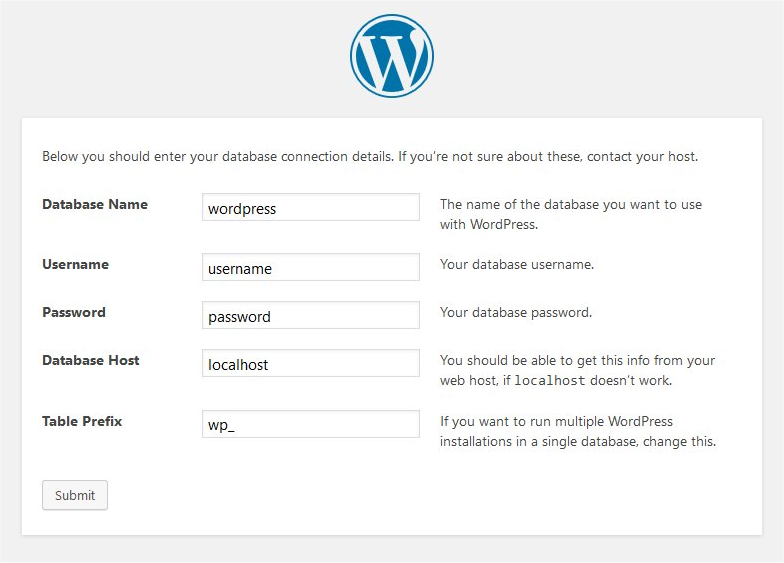
For example, in Hostinger, you just click “Install WordPress” and enter basic details.
Step 2: Understanding the WordPress Dashboard
The WordPress dashboard is where you control everything on your website.
Key sections:
- Posts → Blog content
- Pages → Static pages
- Appearance → Themes
- Plugins → Features
- Settings → Site configuration
For example, creating a blog post happens inside Posts → Add New.
Step 3: Choose and Install a Theme
A WordPress theme controls the design and layout of your website.
First, go to Appearance → Themes → Add New.
Recommended beginner themes:
- Astra
- GeneratePress
- Kadence
For example, Astra loads fast and works well with Elementor.
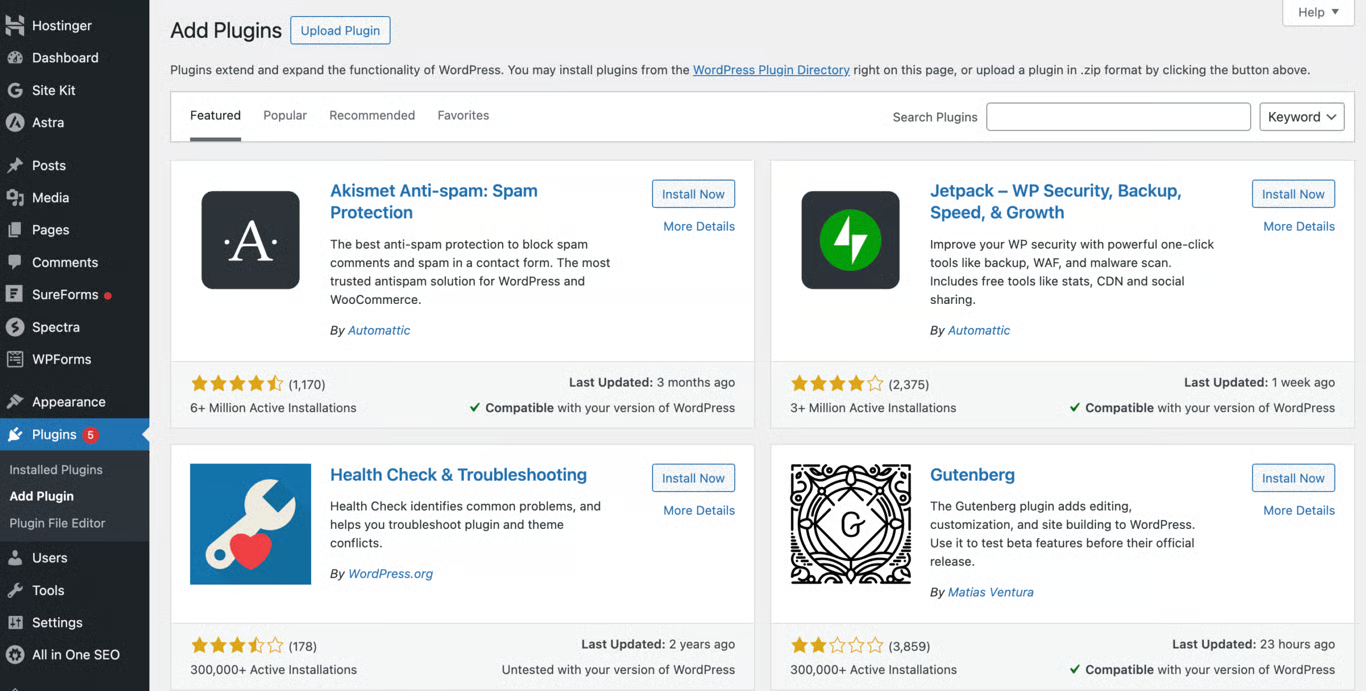
Step 4: Install Essential Plugins
Plugins in WordPress are tools that extend functionality, such as SEO optimization, security, and performance improvements.
Must-have plugins:
- SEO → Rank Math / Yoast
- Security → Wordfence
- Performance → WP Rocket / LiteSpeed Cache
For example, installing Rank Math helps optimize posts for Google rankings.
Step 5: Create Pages and Blog Posts
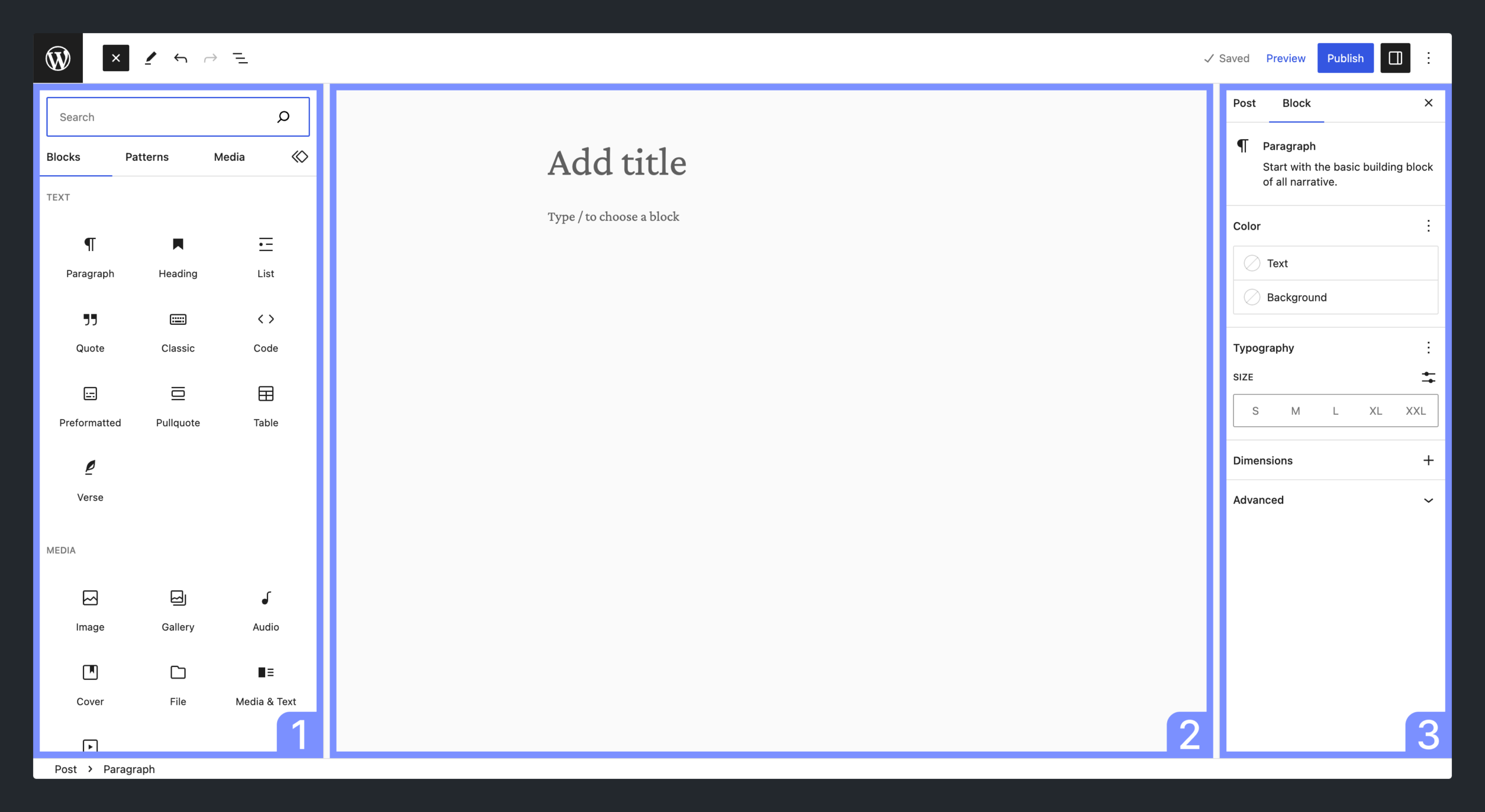
Pages and posts are the core content types in WordPress.
Pages:
- Home
- About
- Contact
Posts:
- Blog articles
Step 6: Customize Menus and Design
Menus and widgets control how users navigate your website.
First, go to Appearance → Menus.
For example:
- Add Home, Blog, Contact
- Arrange order
Second, customize using:
- WordPress Customizer
- Page builders (Elementor)
Step 7: Basic SEO Setup
WordPress SEO basics involve optimizing content, speed, and structure for search engines.
Core SEO steps:
- Add SEO plugin
- Optimize titles & meta
- Use keywords
Consistent content creation and basic SEO practices improve website growth over time.
Statistic: 68% of online experiences begin with a search engine — Source: BrightEdge, 2024
How Do You Choose the Best WordPress Theme as a Beginner?
The best WordPress theme for beginners is lightweight, customizable, and compatible with page builders.
First, focus on speed. For example, Astra loads under 1 second on optimized hosting.
Second, ensure customization flexibility:
- Header/footer control
- Layout options
Third, check plugin compatibility.
Avoid over-designed themes. They slow down your site and kill performance.
What Are the Essential WordPress Plugins for Beginners?
Essential WordPress plugins improve SEO, security, performance, and functionality.
Core stack:
- Rank Math → SEO
- Wordfence → Security
- LiteSpeed Cache → Speed
Statistic: Websites that load in under 2 seconds have 15% higher conversion rates — Source: Google, 2024
How Do You Customize Your WordPress Website Design?
Customizing a WordPress website involves adjusting layout, colors, typography, and structure.
First, use the Customizer for basic edits.
Second, use Elementor for advanced design.
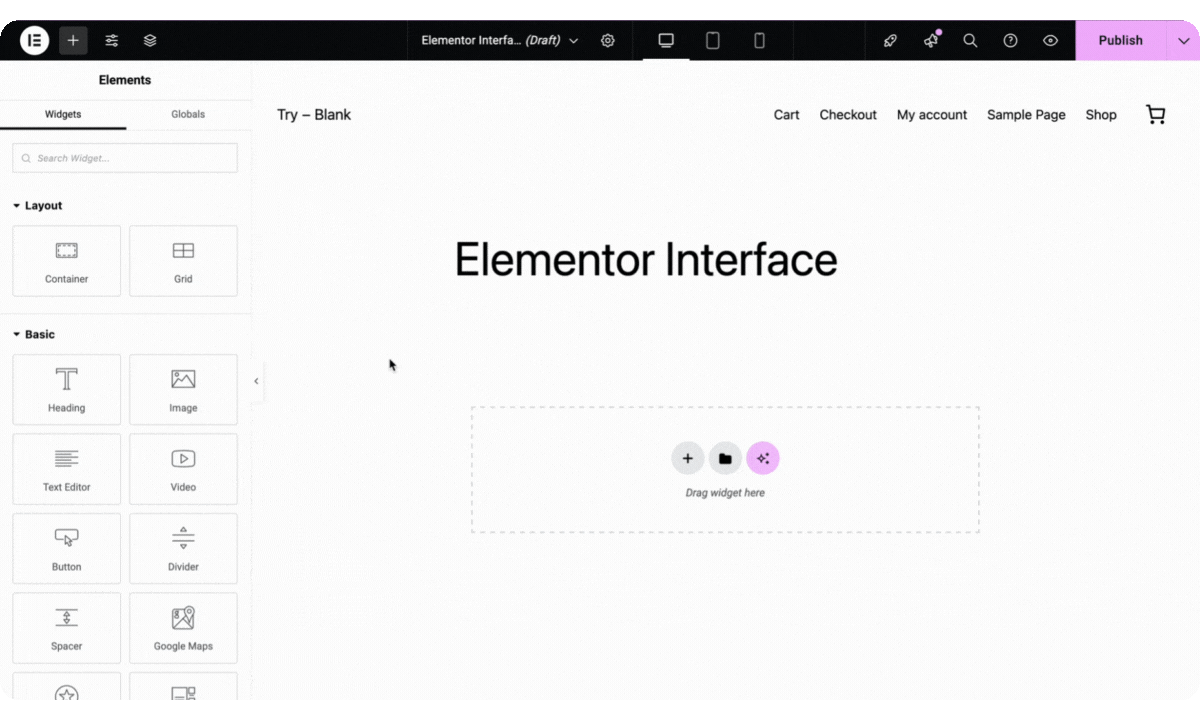
For example, you can drag and drop sections to create landing pages.
What Are the Basic SEO Settings for WordPress?
Basic SEO settings in WordPress include permalinks, metadata, and performance optimization.
Steps:
- Set permalinks → Post Name
- Add SEO plugin
- Optimize images
Statistic: Top-ranking pages have 3.8x more backlinks — Source: Backlinko, 2024
How Long Does It Take to Build a WordPress Website?
A beginner can build a basic WordPress website in 2–6 hours with proper guidance.
First, setup takes 30–60 minutes.
Second, design and content take a few hours.
For example, a simple blog can go live in a single day.
Tools and Practical Applications for WordPress
WordPress tools help streamline design, SEO, and performance.
Recommended tools:
- Elementor → Design
- Rank Math → SEO
- Canva → Graphics
Use cases:
- Blog → Content publishing
- Business → Lead generation
- Portfolio → Showcase projects
What Should You Do After Building Your WordPress Website?
After building your website, you should focus on content, SEO, and growth strategies.
Next steps:
- Publish weekly content
- Learn SEO
- Improve UX
For example, blogs earn via ads, affiliate marketing, and digital products.
Conclusion
WordPress is the easiest and most powerful way to build a website without coding.
Starting feels overwhelming, but execution is simple once you follow a system. The hardest part is not learning—it’s starting.
So stop overthinking. Build your first version today. Improve as you go.
Written by Ravula Charan — Founder of Nothing Down Agency, Full-Stack Web Developer, and creator of the RC ecosystem including RC AppStore, RC Space, RC Webkit, Mega Dukanam, Telika Tools, and Tatva Community.
Reviewed by Editorial Team — Web Development & SEO Specialists
Disclaimer: This article was initially drafted using AI assistance. However, the content has undergone thorough revisions, editing, and fact-checking by human editors and subject matter experts to ensure accuracy.