
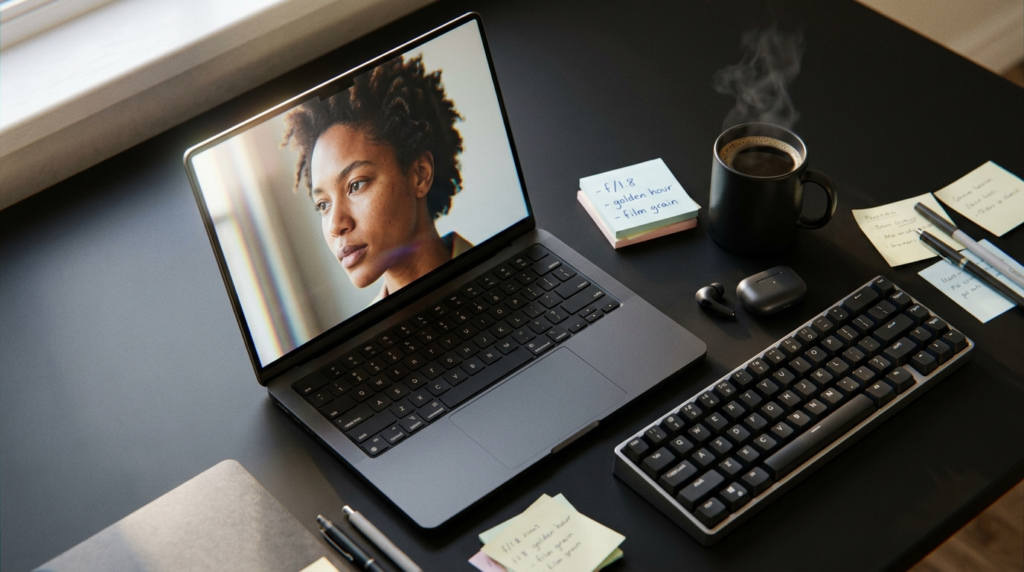
How to Generate the Most Realistic AI Images Possible
How to Generate the Most Realistic AI Images Possible | Step-by-Step AI Image Guide How to Generate the Most Realistic AI Images Possible | Step-by-Step Introduction “Why do my AI images always look so… fake?” You’ve seen it too. The plastic skin. The weirdly perfect hair. Lighting that looks like it came from a studio built inside a video game. You type a prompt, hit generate, and get something that screams “made by a robot.” Here’s the truth: the problem isn’t the AI tool. It’s how you’re talking to it. Realistic AI images don’t happen by accident. They happen when you give the model the right instructions — specific, structured, and detailed. In this guide, you’ll learn exactly how to do that, step by step. No jargon. No fluff. Just practical techniques you can use today. What Makes an AI Image Look Realistic? Think about the last photo you took on your phone. You didn’t think about it — but that image had natural imperfections: soft shadows, slight grain, a background that’s a little blurry, your subject slightly off-center. That’s real life. AI images fail at realism when they’re too clean. When everything is sharp, perfectly lit, and symmetrical, your brain knows something is wrong. Realism comes from: Natural lighting — light from one direction, not everywhere at once Texture and detail — visible pores, fabric weave, surface roughness Imperfections — slight grain, soft blur, uneven shadows Camera characteristics — depth of field, lens distortion, ISO noise Candid moments — not staged, not perfectly posed Step-by-Step Guide to Creating Realistic AI Images 1 Choose the Right AI Tool Not all AI tools are equal when it comes to realism. The tool you choose matters — especially for photo-realistic results. Here are some strong options: Nano Banana ProGreat for realism & iteration MidjourneyStunning artistic detail DALL·E 3Easy, beginner-friendly Stable DiffusionFull control & customization Adobe FireflyGreat for editing workflows Leonardo AIPhoto-realism focused Pro tip: Don’t stop at one result. Generate 4–8 variations per prompt and pick the best. Iteration is everything. Even a perfect prompt won’t produce a perfect image on the first try — every generation has a random element. 2 Use Structured Prompting (This Is the Big One) Most beginners write prompts like a Google search: “woman in a coffee shop.” That gives you a generic, flat image. The solution is structured prompting — breaking your prompt into specific categories. CAMERACanon EOS R5, 85mm f/1.4, shallow depth of field LIGHTINGGolden hour, soft warm side light from left window SUBJECTSouth Indian woman, late 20s, natural skin, reading OUTFITLoose cream linen shirt, no jewelry POSESlightly slouched, one hand holding a cup LOCATIONQuiet corner café, blurred warm-toned background Full example prompt: Realistic Prompt Example Photorealistic portrait, Canon EOS R5, 85mm lens, f/1.4 aperture, ISO 200, golden hour side lighting from left window, soft warm bokeh background. South Indian woman in her late 20s, natural skin texture, reading a book at a small wooden café table. Wearing a loose cream linen shirt, hair loosely tied. Slightly slouched posture, one hand wrapped around a coffee cup. Quiet independent coffee shop, warm tones, shallow depth of field, subtle film grain. Shot by a street photographer. 3 Be Extremely Specific Vague prompts give you vague results. The AI fills in blanks with generic defaults — and generic defaults look fake. The more specific you are, the more the AI has to work with. Add technical camera details: lens type (50mm, 85mm, 24mm), aperture (f/1.8 = blurry background), ISO (high ISO = grain), shutter speed, lighting direction. ❌ Vague Prompt “A man standing outside at night” ✅ Specific Prompt “35mm street photo, f/2.0, ISO 800, neon sign light from the right, a tired man in his 40s leaning against a brick wall, rain-wet pavement reflecting orange streetlights, candid documentary style” The second prompt tells the AI exactly what kind of light, what mood, what lens, and what moment to capture. That’s why it wins. 4 Use Reference Images Most AI tools let you upload a reference photo. This is incredibly powerful. Upload a real photograph and ask the AI to reverse-engineer its style. For example: upload a photo with lighting you love, then write: “Recreate this lighting style with a different subject — a young boy playing cricket in a dusty alley, candid, photorealistic.” Reference images anchor the AI to a specific look, drastically reducing how “AI-generated” the result feels. 5 Add Imperfections on Purpose This sounds backwards — but adding flaws is one of the most powerful techniques for realistic AI images. Real photos aren’t perfect. Here’s how to add intentional imperfections in your prompt: Film grain: “subtle 35mm film grain” Motion blur: “slight motion blur on hands” Lens flare: “mild lens flare from window light” Chromatic aberration: “slight color fringing on edges” Skin texture: “visible pores, natural skin imperfections” These micro-details trick the brain into thinking it’s looking at a real photo. 6 Edit and Improve (Multi-Asset Workflow) You don’t have to regenerate everything if one small element is wrong. Instead, use a multi-asset editing workflow: Use Photoshop’s generative fill or in-painting tools to fix specific areas Regenerate just the face, background, or hands — not the whole image Use prompts like “replace the background with a rain-soaked street at night” Adjust color grading in Lightroom or Photoshop to match real photo aesthetics Think of AI generation as the rough draft. Editing is what makes it final and believable. Pro Tips for Ultra-Realistic Results Think like a photographer Ask: what camera, what light, what moment? Pretend you’re directing a photo shoot. Use candid poses Avoid stiff, “please look at the camera” poses. Real photos catch people mid-action. Avoid perfect symmetry Real faces and scenes are slightly asymmetrical. Add “slightly off-center” or “asymmetric framing.” Use natural lighting Sunlight, window light, street lamps. Avoid prompts with “studio lighting” unless that’s your goal. Name a photographic style Add “documentary style,” “street photography,” or “Magnum Photos aesthetic” to ground the mood. Iterate, iterate, iterate The best realistic image is
How to Generate the Most Realistic AI Images Possible Read More »